




Speed Car Rental Software (CRS) User Guide and Help Centre for UK
This user guide has been put together for UK vehicle hire operators who are setting up Speed CRS for the first time, training new staff members or looking to get more out of a system they are already using.
Whether you have just started your free trial or you have been a Speed CRS customer for several years, this guide is designed to answer your most common questions and walk you through every part of the platform with confidence.
Speed CRS was built around the principle of making things simple. The interface is intuitive and most users are navigating the system independently within their first day. That said, there is a lot of depth in the platform for those who want to explore it, and this guide will help you get there step by step.
Step 1: Setting Up Your Speed CRS Account
When you first log into Speed CRS, begin with your company profile. This is where you enter your business name, registered address, UK VAT number, GBP currency settings and contact details. Getting this right at the start means all rental agreements, invoices and customer communications carry your correct business information from day one.
Our UK customer success team is available throughout the setup process. Call 0800 772 0007 or email info@speedautosystems.com and we will guide you through every step.
If you are moving from an existing system, whether that is a legacy platform, a spreadsheet or another hire software product, we will help you bring all your vehicle data, customer records and booking history across so that nothing is lost in the move.
Step 2: Adding Your Vehicle Fleet
The fleet management module is where you register every vehicle in your hire operation. For each vehicle you can record the registration number, make, model, year, colour, fuel type, transmission, seating capacity and daily hire rate. You can also enter key compliance dates including the MOT expiry, road tax renewal and next scheduled service.
Speed CRS will send you automatic alerts when any of these dates are approaching, giving you enough time to arrange the required work before the vehicle needs to come off the road. In a busy operation where it is easy to lose track of compliance dates across a large fleet, this feature alone prevents a significant amount of unnecessary stress and potential legal risk.
Step 3: Creating and Managing Bookings
The booking management screen is where your front desk team will spend most of their time in Speed CRS. From here you can create new reservations for walk-in customers or phone enquiries, modify existing bookings, process check-outs and check-ins, handle extensions and early returns and issue invoices. All bookings from your website and broker platforms appear in the same calendar, updated in real time.
Each booking record holds everything related to that hire in one place: customer details, the signed rental agreement, the vehicle assigned, the agreed rate, any extras or add-ons, payment status and the inspection reports from check-out and check-in. Any member of your team can find what they need without having to ask anyone else.
Step 4: Using the Mobile Inspection App
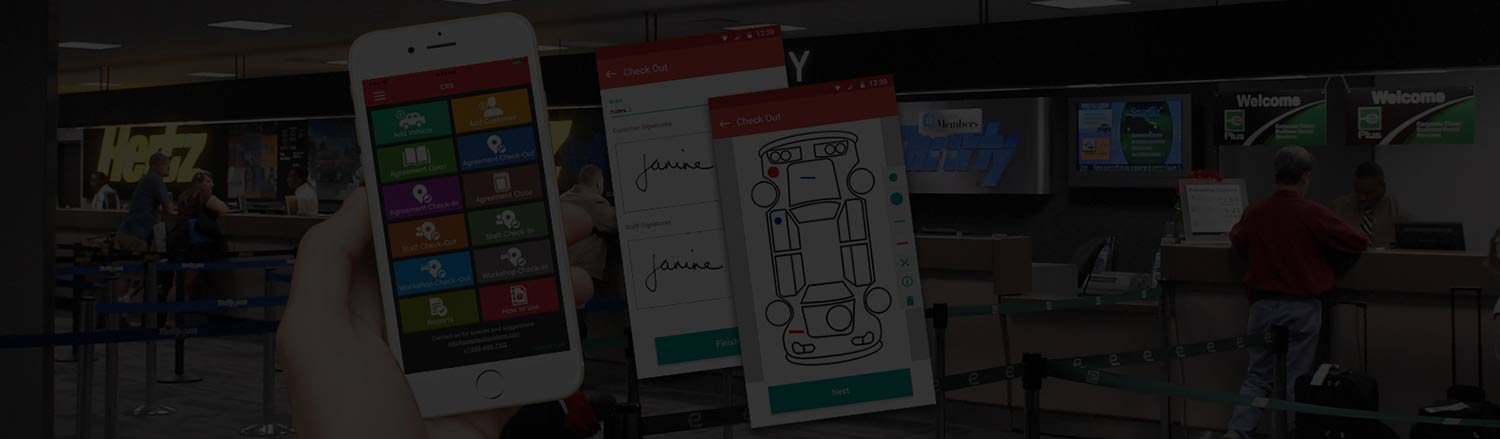
Download the Speed CRS Mobile Inspection App from the Apple App Store or Google Play and log in with your Speed CRS credentials. From the app you can access all current and upcoming bookings, select a booking to start a check-out or check-in inspection, photograph the vehicle, record fuel and mileage, note any damage and collect the customer’s electronic signature on the completed report.
Everything from the inspection is uploaded automatically to the system and attached to the booking record. Photos carry a date, time and location stamp. The customer receives a copy by email, and your office team can see the inspection report immediately in their dashboard. The whole process takes around five minutes once your team is comfortable with it, and it creates a complete digital record that protects your business in any future damage dispute.
Step 5: Processing Payments and Sending Invoices
Speed CRS supports card payments, bank transfers, pay-by-link and direct debit, depending on your configuration. VAT-compliant invoices are generated automatically and can be emailed to customers at the point of check-out. For corporate accounts, the system supports monthly consolidated invoicing and purchase order management, so your accounts team is not chasing individual transactions across multiple bookings.
Payment reconciliation reports give you a clear daily and monthly view of what has been received and what is outstanding, so your financial admin stays organised rather than piling up at the end of the month.
Step 6: Using the Reporting Suite
Speed CRS includes over 50 built-in reports covering every aspect of your hire operation. Reports can be filtered by date range, location, vehicle category and booking source. The most commonly used reports include fleet utilisation by vehicle and category, revenue by booking source, outstanding balances, customer booking frequency and operational performance metrics. All reports can be exported to Excel or PDF for sharing with management or your accountant.
We recommend setting up a weekly reporting routine using three or four core reports that are most relevant to your business. Most operators find that regular engagement with the data quickly leads to operational improvements they had not previously identified.
Step 7: Managing Staff and User Permissions
Speed CRS gives you full control over what each member of your team can see and do within the platform. You can set access levels individually, so a front desk agent can manage bookings without viewing financial reports, a fleet manager can oversee vehicle records without touching customer data, and your administrator can oversee everything. This keeps sensitive information in the right hands and supports your UK GDPR obligations at the same time.
Setting up user permissions correctly is an important step in maintaining UK GDPR compliance, as it ensures that personal customer data is only accessible to staff members who have a legitimate need for it.
Getting Ongoing Support
Our UK customer support team is available by phone on 0800 772 0007 and by email at info@speedautosystems.com. Support hours are Monday to Friday, 9am to 5:30pm GMT. For urgent issues outside those hours, we operate an emergency support line for business-critical situations. Our online help centre includes a comprehensive library of written guides, step-by-step tutorials and video walkthroughs covering every feature in Speed CRS.